Field note
Zapier Marketing Automation: 10 Ready-to-Copy Workflows
Discover ten ready-to-copy workflows for Zapier marketing automation that streamline tasks, boost efficiency, and enhance your team's productivity.
Zapier lets marketing teams automate lead capture, content pipelines, and social posting with ready-made Zaps and AI steps, so you ship faster and cut manual handoffs. If you're deciding where to start, these four automations deliver the fastest return:
- Facebook Lead Ads → HubSpot or Salesforce: New ad leads create CRM contacts instantly, triggering a nurture sequence without anyone touching a spreadsheet.
- New blog post → Buffer / Schedule by Zapier → LinkedIn, X, Instagram: One publish event fans out to every channel automatically.
- Form fill → Airtable row + Slack alert: Your team knows about every new lead or content request the moment it lands.
- OpenAI/ChatGPT draft → Google Docs review → WordPress publish: A full content pipeline with a human approval gate before anything goes live.
Once those are running, the natural next step is adding an AI drafting step and a Paths branch to handle different lead types or content categories differently.
Key Takeaways
Zapier is a production-ready orchestration layer for marketing teams: deploy lead routing and social cross-posting first, add AI drafting with an approval gate second, and govern every Zap with naming conventions, owner fields, and failure alerts.
| Point | Details |
|---|---|
| Start with lead routing | Facebook Lead Ads or LinkedIn Ads → CRM is the fastest, highest-ROI Zap to deploy first. |
| Add social cross-posting second | RSS or CMS trigger → Buffer or Schedule by Zapier eliminates manual posting across channels. |
| Gate every AI output | Always add a human review step before publishing AI-generated content to avoid quality failures. |
| Paid plan is the baseline | Multi-step Zaps, premium connectors (Salesforce, HubSpot), and webhooks all require a paid plan. |
| assets dev fills the visual gap | Add an assets dev API step to render brand-matched images or videos inside any content Zap. |
Table of Contents
- What does Zapier marketing automation actually do for growth teams?
- High-impact Zap workflows you can copy right now
- How do you build a Zap from scratch?
- How do you add AI into Zapier marketing workflows?
- Two content production architectures that actually work
- Operational rules for scaling Zaps without breaking things
- When do you need a paid Zapier plan?
- Where to start: templates, resources, and a quick launch checklist
- How do you fix the most common Zap errors?
- Security and data privacy when automating marketing workflows
- The case for starting simple and adding gates before scaling
- Brand-ready assets inside your Zapier content pipeline
- Useful resources
- Sources
- FAQ
What does Zapier marketing automation actually do for growth teams?
Zapier is an orchestration layer with 9,000+ app integrations and built-in workflow logic, including filters, paths, and webhooks, that lets you connect tools without writing code. A Zap has three parts: a trigger (something happens in App A), one or more actions (Zapier does something in App B, C, D), and optional logic steps like filters or formatters that shape the data in between.
For marketing teams, the practical payoff is removing the manual work that sits between tools. Lead data stops living in a Facebook Ads dashboard that nobody exports. Blog posts stop waiting for someone to copy-paste them into a social scheduler. Campaign metrics stop requiring a weekly manual pull into Google Sheets.
The primary value of automation for growth teams is reliability and consistency. Automations eliminate the "shuffling" between tools and ensure predictable handoffs, so humans can focus on strategy rather than data entry.
Zapier is the right choice when your stack is already assembled and you need to connect it, not replace it. If you're evaluating a monolithic marketing cloud that handles everything natively, Zapier won't compete on depth within a single platform. Where it wins is breadth: no other no-code tool connects as many apps, and the pre-built Zap templates for marketing mean you can deploy a working lead-routing automation in under 20 minutes.
High-impact Zap workflows you can copy right now
These six workflows cover the automations growth teams run most. Each maps the trigger, the apps involved, and the key steps.
| Workflow | Trigger | Apps Involved | Key Steps |
|---|---|---|---|
| Lead capture & CRM routing | Facebook Lead Ads / LinkedIn Ads form | Facebook Lead Ads, HubSpot or Salesforce, Slack | New lead → create/update CRM contact → notify sales channel |
| Email campaign trigger | CRM tag or deal stage change | HubSpot or Salesforce, Mailchimp | Stage change → add to Mailchimp audience → start sequence |
| Social cross-posting | New WordPress post or RSS item | WordPress / RSS, Buffer or Schedule by Zapier | New post → format caption per channel → queue to LinkedIn, X, Instagram |
| Content pipeline | Google Form or Airtable row | Google Forms, Airtable, OpenAI, Google Docs, WordPress | Form submit → store brief → generate draft → route for review → publish |
| Ad conversion reporting | Google Ads conversion event | Google Ads, Google Sheets, Airtable | Conversion fires → append row → update campaign dashboard |
| CRM enrichment | New CRM contact | HubSpot or Salesforce, Clearbit or similar, Google Sheets | New contact → enrich data → update CRM fields → log to Sheets |
Lead capture and routing is the highest-ROI starting point. Zapier automations route form fills, webinar signups, and ad leads to a CRM in real time, eliminating manual entry and cutting the lag between a lead raising their hand and a sales rep seeing it. A typical Zap: Facebook Lead Ads fires the trigger, a Filter step checks that the lead's country matches your territory, then Zapier creates a HubSpot contact and posts a formatted message to a Slack channel.

Social cross-posting is the second-fastest win. Zapier turns new blog posts or RSS items into channel-ready posts and queues them for scheduling, so a single publish event reaches every platform without manual copying. RSS feeds are a reliable trigger here, monitoring your blog or any third-party source and firing the moment a new item appears.
Pro Tip: Use a Formatter step between your CMS trigger and your social actions to split one post into platform-specific variants. LinkedIn tolerates longer copy; X needs a tighter character count; Instagram wants a line-break-heavy caption. One Formatter step, three outputs, three actions.
For the content pipeline, Zapier's AI content generation workflows draft, route, and publish content with approval gates. The Paths feature is worth using here: route high-priority content requests to a fast-track path and standard requests to a longer editorial queue.
How do you build a Zap from scratch?
Follow this checklist when setting up any new marketing Zap. It takes about 30 minutes for a simple flow and an hour for a multi-step one with AI.
- Pick your trigger app and event. Be specific: "New submission" in Typeform is different from "New lead" in Facebook Lead Ads. Choose the event that fires exactly when you want the workflow to start.
- Connect and authenticate the trigger account. Use a dedicated service account where possible, not a personal login, so the Zap doesn't break when someone changes their password.
- Map trigger fields. Confirm the field names match what you expect. A form field labeled "Company Name" may arrive as
company_nameorfield_3depending on the tool. - Add Formatter or Filter steps. Clean the data before it hits your destination. Strip whitespace, standardize phone formats, filter out test submissions with a Filter step that checks for
@test.comemail addresses. - Add your action steps. Keep each action to one job. Create the CRM contact in step 3, send the Slack notification in step 4. Don't bundle them.
- Add a Delay or approval pause if needed. For AI-generated content, a Delay step or a manual approval step (via email or Slack) prevents raw output from publishing automatically.
- Test with real sample data. Use Zapier's built-in test runner and inspect every output field. Don't rely on the "Zap is on" green light alone.
- Check rate limits. HubSpot's free tier allows 100 API calls per 10 seconds. Mailchimp has its own limits. A Zap that fires 500 times in a minute will hit those walls.
- Enable and monitor for 48 hours. Watch the Task History for failures. Set a Slack alert for any Zap error using Zapier's own error notification settings.
- Document the Zap. Add a description in the Zap editor: what it does, who owns it, and when it was last reviewed.
Pro Tip: Zapier's built-in testing tools let you replay a specific trigger event with real data. Use this before enabling a Zap in production, and keep a staging Zapier account for testing changes to live workflows without risking real data.
How do you add AI into Zapier marketing workflows?
The most practical AI pipeline for content teams runs like this: a Google Form or Airtable row captures the content brief, an OpenAI/ChatGPT action generates a first draft, a Formatter step cleans the output, a Slack or email step routes it for human review, and a final action publishes to WordPress or your CMS once approved.
Zapier's AI content generation automations integrate directly with ChatGPT and other LLMs, and the approval gate pattern is what separates teams that publish consistently from teams that publish garbage at scale.
Chain AI steps with validation: send AI drafts to a formatting or compliance check step, pause for human review, then publish. This prevents raw, unvetted AI output from going live automatically.
Prompting for brand voice. Keep a short prompt template in a Zapier Storage or Airtable field that you pull into every OpenAI action. Something like: "Write a 150-word LinkedIn post in a direct, professional tone for [brand]. Use the following brief: {{brief}}. Do not use the word 'innovative.' End with a question." Storing the prompt outside the Zap means you can update it without editing the automation.
When to use AI by Zapier vs. direct OpenAI integration. AI by Zapier is faster to set up and doesn't require an OpenAI API key, but it offers less control over model selection and token limits. For high-volume or brand-sensitive content, the direct OpenAI integration gives you model choice, temperature control, and system prompt flexibility.
Pro Tip: Before sending any data to OpenAI, add a Formatter step to strip or replace PII fields. Replace a contact's real name with a placeholder like "the prospect" and their company with "the client." This keeps your prompts useful while avoiding sending personal data to a third-party model.
Zapier also documents AI workflows that generate SEO-friendly content and metadata, routing outputs into CMS platforms for publish-ready assets. That's a natural extension once your basic draft pipeline is stable.
Two content production architectures that actually work
Growth teams tend to fall into one of two pipeline shapes. Here's how to build each one.
Architecture A: Lightweight editorial flow (small teams)
Google Forms captures the content brief. A Zap creates an Airtable row with all brief fields. A second Zap watches for rows with status "Ready for draft," calls OpenAI, writes the draft back into the Airtable row, and posts a Slack message with a review link. A human approves by changing the Airtable status to "Approved." A third Zap watches for that status change and publishes to WordPress.
Three Zaps, one Airtable base, no custom code. This end-to-end flow from content request to CMS publish cuts manual coordination at every handoff.
Architecture B: Scaled editorial pipeline (agencies and larger teams)
| Stage | Tool | Zapier Role |
|---|---|---|
| Brief intake | Typeform or Airtable | Trigger: new row or submission |
| AI drafting | OpenAI / ChatGPT | Action: generate draft, store in Google Docs |
| Channel formatting | Zapier Formatter | Split into LinkedIn, Instagram, X variants |
| Approval gate | Slack + Zapier Tables | Pause: notify reviewer, wait for approval status |
| Multi-channel publish | Buffer, WordPress, Mailchimp | Actions: publish or queue per channel |
| Reporting | Google Sheets or Airtable | Log publish timestamp, channel, campaign tag |
A sample webhook payload for the intake stage should capture: title, author, campaign_id, publish_date, asset_links (image or video URLs), and meta_description. Passing those fields through every step keeps your reporting clean and your assets traceable.
Use Zapier's Formatter to split one editorial row into channel-specific variants before routing to different actions. Instagram captions need line breaks and hashtags; LinkedIn posts need a professional opener; X needs a hard character cut. One Formatter step handles all three. Zapier's content automation tools connect CMS, calendars, and social platforms to keep posts going out on schedule with approval routing built in.
Pro Tip: Add a validation step between the AI draft and the approval notification. A simple Formatter or Code step that checks word count and flags drafts under 80 words prevents reviewers from approving placeholder-length output.
Operational rules for scaling Zaps without breaking things
Governance is what separates a team with 5 reliable Zaps from a team with 50 Zaps nobody trusts.
Naming conventions matter more than you think. Every Zap name should follow a pattern: [Team] | [Trigger App] → [Destination] | [Purpose]. Example: Marketing | Facebook Lead Ads → HubSpot | Lead routing. When something breaks at 2 AM, you want to find the right Zap in 10 seconds.
- Owner field: Every Zap has a named owner in the description. Not a team, a person.
- Documentation: Keep a shared Notion or Airtable log of all production Zaps: name, owner, trigger, destination, last reviewed date, task volume.
- Approval step for production changes: Any edit to a live Zap that touches lead data or publishing should go through a second pair of eyes before re-enabling.
- Scheduled audits: Review all active Zaps monthly. Disable any Zap that hasn't fired in 60 days.
A spike in task failures is a data integrity event, not just a technical glitch. If a Zap that routes leads to HubSpot starts failing, leads are disappearing. Treat error-rate spikes with the same urgency as a broken ad campaign.
Monitoring setup. Connect Zapier's error notifications to a dedicated Slack channel. Set a weekly calendar reminder to check the Task History dashboard. Track your monthly task usage against your plan limit, especially in months with campaign launches that spike volume.
Data hygiene. Map canonical field names across every Zap that touches the same data object. If HubSpot calls it firstname and your form calls it first_name, a Formatter step normalizes it before it hits the CRM. Consistent UTM parameters across every lead source make your Google Sheets reporting actually usable.
When do you need a paid Zapier plan?
The free tier covers single-step Zaps with a limited monthly task count. Most marketing automations need more than one step, which means a paid plan is the baseline for real use.
Estimating your task count. Each action step in a Zap consumes one task. A three-step Zap (trigger + two actions) uses two tasks per run. If you get 50 form leads per day and each triggers a three-step Zap, that's 100 tasks per day, roughly 3,000 per month. Add an AI drafting step and a Slack notification and you're at 5,000 tasks per month from one workflow alone.
Premium connectors for Salesforce, HubSpot, and LinkedIn Ads are only available on paid plans. Webhooks, which you'll need for any custom app or CMS that isn't in Zapier's app library, are also paid-only.
To keep task counts down: use Filters early in the Zap to stop irrelevant triggers from running through all steps; batch-process where possible using Zapier's digest or delay features; and consolidate parallel Zaps that share a trigger into one multi-path Zap.
Where to start: templates, resources, and a quick launch checklist
The fastest way to deploy your first marketing Zap is to clone a pre-built template from Zapier's template gallery rather than building from scratch.
High-value templates to try first:
- Facebook Lead Ads → HubSpot (lead routing, immediate CRM entry)
- RSS by Zapier → Buffer (blog-to-social queue, zero manual posting)
- Typeform → Airtable + Slack (content request intake with team alert)
- New WordPress post → LinkedIn + X (cross-posting on publish)
- OpenAI → Google Docs → Slack (AI draft with review step)
Quick-start checklist to deploy a template:
- Open the template in Zapier and click "Try this Zap."
- Connect each app account (use service accounts, not personal logins).
- Map every field from the trigger to the action. Don't leave any field set to a default you haven't verified.
- Run the test with a real sample record.
- Check the output in the destination app before enabling.
- Enable the Zap and monitor Task History for the first 24 hours.
For channel-specific social posting tactics and scheduling integrations, the social media automation tools guides on assets dev go deeper on platform-by-platform formatting. For content distribution and implementation options, Valiz covers tooling and services worth reviewing alongside your Zapier setup.
How do you fix the most common Zap errors?
Most Zap failures fall into a handful of categories. Here's how to diagnose each one quickly.
Authentication errors. The most common cause of a broken Zap. The connected account's token expired or the password changed. Fix: reconnect the account in Zapier's "Connected Accounts" settings and re-test the Zap. Set a calendar reminder to rotate service account credentials before they expire.
Field mapping failures. A trigger field that existed when you built the Zap no longer exists or changed its name. Fix: open the Zap editor, reload the trigger sample, and remap any fields showing as missing. This happens frequently after form redesigns or CRM field renames.
Rate limit errors. Your Zap is firing faster than the destination app allows. Fix: add a Delay step before the action to spread requests over time, or check whether the destination app has a batch endpoint you can use instead.
Filter blocking all runs. A Filter step is set too strictly and stopping every trigger from proceeding. Fix: check the Filter conditions against real trigger data. Use Zapier's Task History to see which step a run stopped at and what value it evaluated.
Formatter output mismatches. A Formatter step produces an empty string or unexpected format. Fix: test the Formatter step in isolation with a known input and verify the output before connecting it to downstream actions.
When a Zap fails, Zapier logs the exact step and the data at that point. The Task History view is your first stop, not the Zap editor. Read the error message before changing anything.
Security and data privacy when automating marketing workflows
Zapier handles data in transit between your connected apps, which means every piece of customer data that flows through a Zap is subject to your privacy obligations under laws like the CCPA in California and CAN-SPAM for email marketing.

Minimize what you pass. Only include fields in your Zap that the destination app actually needs. If your CRM only needs name, email, and lead source, don't pass phone number and IP address through the Zap just because the form collected them.
Avoid sending PII to AI models. Before any OpenAI or ChatGPT action, add a Formatter step that strips or replaces personal identifiers. A content brief doesn't need a real prospect's name to generate a useful draft.
Use Zapier's data retention settings. Zapier stores task data for a period that varies by plan. Review your plan's retention window and confirm it aligns with your data retention policy. For sensitive industries, consider whether task logs containing customer data need to be purged on a schedule.
OAuth and least-privilege access. When connecting apps, grant only the permissions the Zap actually needs. A Zap that reads new HubSpot contacts doesn't need write access to your entire CRM. Review connected app permissions quarterly.
Audit your Zap connections after team changes. When a team member leaves, their connected accounts may still be powering live Zaps. Zapier's admin panel lets you audit and transfer Zap ownership. Do this as part of your offboarding checklist.
The case for starting simple and adding gates before scaling
The teams that get the most out of Zapier marketing automation are the ones that resist the urge to automate everything at once. Start with the two or three highest-frequency manual tasks, get them running reliably, and measure the impact before adding complexity.
The metric that matters most in the first 30 days isn't task count. It's lead response time for routing Zaps and content throughput for publishing pipelines. If your lead-routing Zap cuts response time from four hours to four minutes, that's the number to put in front of your team. If your blog-to-social Zap ships three posts per week that previously required 45 minutes of manual work each, that's 135 minutes back per week.
The one place teams consistently underestimate risk is AI output. An approval gate isn't bureaucracy. It's the difference between a content pipeline that builds trust and one that publishes something embarrassing on a Tuesday morning. Keep the gate until you have enough data to know your prompts are reliable.
Brand-ready assets inside your Zapier content pipeline
Every Zapier content pipeline eventually hits the same gap: the copy is automated, but the visual asset still requires a designer or a manual Canva session. assets dev closes that gap.
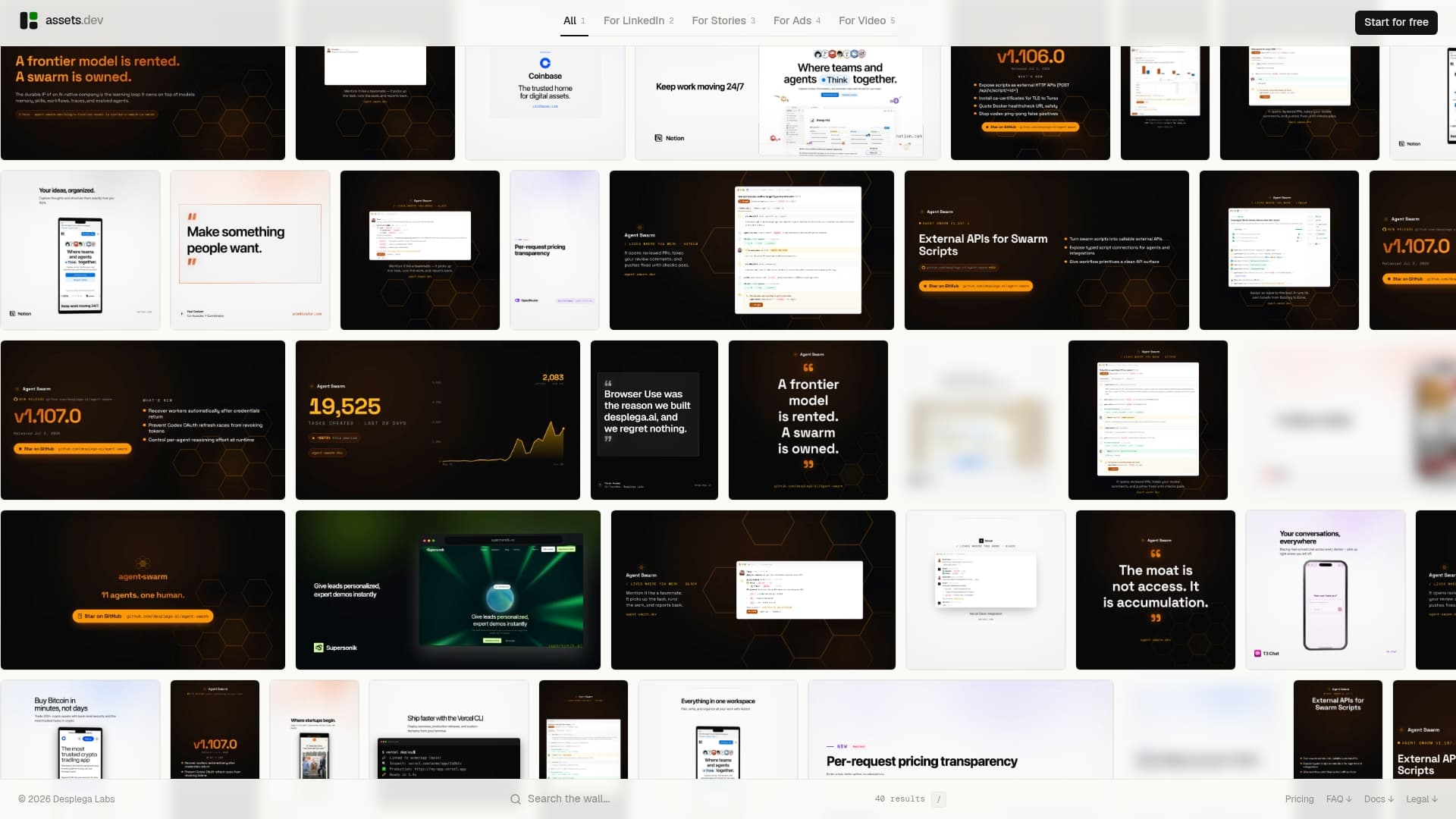
With assets dev's API and CLI integration, you can add an asset generation step directly inside your Zap. The flow looks like this: your content brief triggers an OpenAI draft, a parallel step calls the assets dev API to render a brand-matched image or video using your chosen template, the asset URL is stored in Airtable, and both the copy and the visual are pushed to your social scheduler or CMS together. No designer bottleneck, no off-brand visuals.
The system reads your brand in seconds and applies it to every render. Templates cover LinkedIn, Instagram, Google, X, and Substack formats. The free plan gives you up to 100 image renderings with no credit card required. Through July 2026, new accounts get 1,000 credits instead of 100. The pro plan is $9/month. For AI design tools that plug directly into automated workflows, assets dev is built for exactly this use case.
Assets and add the API step to your next content Zap.
Useful resources
The sources below are the most useful starting points for the automations covered in this article.
| Resource | What It Covers |
|---|---|
| Zapier Marketing Automations | Pre-built Zap templates for lead routing, email triggers, and campaign workflows |
| Zapier Social Media Automation Guide | Step-by-step guide to automating social posting with RSS, CMS, and scheduling tools |
| Zapier AI Content Generation | Templates and workflows for AI-assisted drafting, review, and CMS publishing |
| Speed Up Content Production with AI | Detailed walkthrough of end-to-end content pipelines using Zapier and OpenAI |
| Zapier Marketing Solutions | Overview of Zapier's marketing use cases, app library, and orchestration features |
Zapier's template gallery is searchable by app name or use case. Searching "HubSpot lead" or "social posting" returns many pre-built flows you can clone in one click.
Sources
- Automate your marketing stack | Zapier
- How to use Zapier for social media automation
- Marketing automation solutions | Zapier
FAQ
What can you automate with Zapier for marketing?
Zapier handles lead capture and CRM routing, email campaign triggers, social cross-posting, AI content drafting, ad conversion reporting, and CRM enrichment. Most marketing teams start with lead routing and social posting, then add AI-assisted content pipelines.
How much does Zapier cost for marketing teams?
Zapier's free plan covers single-step Zaps with a limited monthly task count. Multi-step Zaps, premium app connectors like Salesforce and HubSpot, and webhooks all require a paid plan. Task costs scale with workflow complexity: a three-step Zap uses two tasks per run.
What big companies use Zapier?
Zapier's customer base spans companies across industries, including teams at HubSpot, Salesforce, and thousands of mid-market and enterprise marketing organizations that use it as an orchestration layer between their existing tools.
What is the best marketing automation platform?
The right platform depends on your stack. Zapier excels as a cross-tool orchestration layer when you already have a CRM, email tool, and social scheduler and need to connect them. Monolithic marketing clouds like HubSpot offer deeper native features within a single platform but less flexibility across third-party apps.
How do you avoid publishing bad AI output through Zapier?
Add a manual approval step between the AI drafting action and the publish action. Route the draft to Slack or email for review, and only proceed when a human changes a status field in Airtable or Google Sheets to "Approved." This pattern is covered in Zapier's AI content generation workflows.