Field note
How to Connect an RSS Feed to LinkedIn in 2026
Learn how to connect an RSS feed to LinkedIn in 2026 for Pages and personal profiles using native options or automation tools.
LinkedIn supports RSS natively, but only for Pages, not personal profiles. If you run a company Page, you can pull in an RSS feed directly through Page settings and queue posts without touching a third-party tool. For personal profiles, or if you want more control over formatting and scheduling, you have two other routes: no-code automations like Zapier, IFTTT, or Make, and developer workflows using the LinkedIn API, GitHub Actions, or open-source CLI tools.
Here's the quick map:
- Route 1 — Native Page RSS: Page super admins and content admins can add an RSS source directly in LinkedIn Page settings. LinkedIn confirms this is the only officially supported, non-developer path on the platform.
- Route 2 — No-code automations: Zapier, IFTTT, and Make connect RSS feeds to both Pages and personal profiles. Good for teams who want to move fast without writing code.
- Route 3 — Developer/custom workflows: GitHub Actions, the LinkedIn API, and CLI tools like rss2socials give you deduplication, scheduling guarantees, and custom transformations. Requires OAuth scopes and token management.
One security note upfront: any third-party app you connect to LinkedIn needs OAuth access. Review the scopes it requests before authorizing, and revoke access for any app you stop using.
Key Takeaways
Connecting RSS to LinkedIn works natively for Pages and through automation tools or developer workflows for profiles, with the right route depending on your role, technical resources, and content volume.
| Point | Details |
|---|---|
| Native Page RSS | Page super admins and content admins can add feeds via Settings → Manage Content Sharing → + Add Source. |
| No-code for profiles | Zapier, IFTTT, and Make connect RSS feeds to personal profiles and Pages with minimal setup. |
| Developer route | GitHub Actions with w_member_social scope and a seen-file for deduplication handles high-volume or multi-platform pipelines. |
| Validate before connecting | Confirm the feed URL is public, returns valid XML, and includes <title>, <link>, and <pubDate> on each item. |
| assets dev for visuals | Generate on-brand images or videos from RSS content and attach them in your automation to replace generic link previews. |
Table of Contents
- How do you add an RSS feed to a LinkedIn Page?
- What are your options when you need more control or a personal profile?
- How do developers build a reliable RSS-to-LinkedIn pipeline?
- How do you find or create a usable RSS feed URL?
- What are the best practices for sharing RSS content to LinkedIn?
- How do you fix common RSS-to-LinkedIn problems?
- Automation is a tool, not a strategy
- Your RSS posts will look better with on-brand visuals
- Sources
- FAQ
How do you add an RSS feed to a LinkedIn Page?
You need either a super admin or content admin role on the Page. Without one of those, the Manage Content Sharing menu won't appear.
Step-by-step:
- Go to your LinkedIn Page and click Settings in the left navigation.
- Select Manage content sharing from the settings menu.
- Click + Add source.
- Fill in three fields: a title for the source, a content category, and the RSS feed URL.
- Save. LinkedIn will begin importing items from the feed.
The Manage Content Sharing setup page documents the exact form fields. LinkedIn accepts standard RSS 2.0 and Atom feeds. Each imported item lands in a draft queue for review rather than posting automatically, so your team can edit the copy, swap the image, or discard items that don't fit before anything goes live. Check the Content Suggestions tab inside your Page to find and act on queued items.
What the feed needs to include: a reachable public URL, valid XML, and items with at least a <title>, <link>, and <pubDate>. Feeds behind authentication won't work here.
What are your options when you need more control or a personal profile?
Native Page RSS is clean and official, but it has real limits: it only works for Pages, it doesn't auto-post, and you can't customize the post text or attach a custom image at the feed level. That's where no-code tools and developer routes earn their place.
No-code connectors: Zapier, IFTTT, and Make
Zapier's RSS-to-LinkedIn integration triggers on new feed items and creates LinkedIn company updates or personal status posts. Setup takes under 15 minutes. You can map feed fields (title, description, link) to the post body, add static text as a hook, and choose whether to post to a Page or a profile. The free Zapier tier works, but it polls less frequently and caps monthly task volume.

IFTTT's RSS-to-LinkedIn applet covers personal profiles and supports link, text, image, and video update types. Polling frequency is the catch: free IFTTT accounts check feeds less often than paid Pro accounts, which can make it look like the applet missed a post when it just hasn't checked yet.
Make (formerly Integromat) sits between the two in complexity. Its visual scenario builder lets you add filters, conditional logic, and data transformations before the LinkedIn post step, which is useful if you want to post only items tagged with a specific category or above a certain word count.
Comparison: which route fits your situation?
| Dimension | Native LinkedIn Page RSS | No-code (Zapier / IFTTT / Make) | Developer / custom scripts |
|---|---|---|---|
| Supported target | LinkedIn Pages only | Pages and personal profiles | Pages and personal profiles |
| Cost | Free (included with Pages) | Free tiers available; paid for faster polling | Free (open-source tools); hosting costs vary |
| Post customization | Limited (edit in draft queue) | Moderate (field mapping, static text) | Full (templates, OpenAI summaries, metadata) |
| Polling frequency | LinkedIn-controlled | Free: slower; Paid: faster | Configurable (cron / Actions schedule) |
| Technical skill | None | Low (point-and-click) | Medium to high (API, tokens, CLI) |
| Deduplication | Handled by LinkedIn | Basic (Zapier deduplicates by default) | Manual (seen-file or DB required) |
Use-case examples:
- Company blog feed to your organization's Page: native LinkedIn RSS, no extra tools needed.
- A team lead's personal profile sharing industry news: IFTTT or Zapier, set up in an afternoon.
- Multi-platform republishing with custom captions and deduplication: developer route or rss2socials.
Risks to know: API tokens expire. Free-tier polling delays can cause posts to appear hours late. LinkedIn's API rate limits cap how many posts you can create per day, and the preview image pulled from a link isn't always the one you'd choose.
How do developers build a reliable RSS-to-LinkedIn pipeline?
The LinkedIn & Sales Navigator Data Exporter tool is a practical starting point for developers building reliable RSS-to-LinkedIn pipelines. It reads a list of RSS feeds, checks for new items, and posts to LinkedIn using a stored access token. The workflow expects four key inputs: feed_list (your RSS URLs), ln_access_token (your OAuth token), embed_image (whether to attach the feed's image), and last_post_path (a file tracking the last posted item for deduplication).
Required OAuth scopes: w_member_social for posting and openid for identity verification. Request only the scopes you need. Broader scopes increase your exposure if a token is ever compromised.
Developer checklist:
- Store tokens in GitHub Actions secrets or a secrets vault like HashiCorp Vault. Never hardcode them.
- Track posted GUIDs in a seen-file or lightweight database. Don't rely on
pubDatealone since some feeds republish items with updated dates. - Handle rate-limit responses (HTTP 429) with exponential backoff, not immediate retries.
- Log every API call and alert on consecutive failures so you catch a broken pipeline before it goes silent for days.
- Test against a staging LinkedIn Page or a sandboxed profile before enabling auto-publish.
rss2socials takes a more modular approach. It's a CLI tool that supports multiple social connectors, built-in deduplication, and optional OpenAI-powered summaries. If you're building a multi-platform pipeline or want to extend the connector architecture, it's a cleaner foundation than a single-purpose Actions workflow.
Pro Tip: Run your pipeline in dry-run mode for the first week. Log what would have posted, review it manually, and only flip to live posting once the output consistently matches your brand voice.
How do you find or create a usable RSS feed URL?
Most publishing platforms expose a feed at a predictable path. WordPress sites serve one at /feed or /rss.xml. Ghost blogs use /rss. Substack newsletters have a feed at [publication].substack.com/feed. Atom feeds often live at /atom.xml. Start there before hunting for a feed link in the page source.
Quick validation checklist:
- Open the URL in a browser. Valid XML should render (or your browser will flag a parse error).
- Confirm the feed contains
<item>or<entry>elements with<title>,<link>, and<pubDate>. - Check that the URL is publicly reachable without login.
When a site has no native feed, services like RSS.app and FetchRSS can generate one from a web page URL. They scrape the page and output a valid feed you can plug into LinkedIn or any automation tool. Reliability varies: if the source page changes its HTML structure, the generated feed can break. Check generated feeds weekly during the first month.
One practical rule: the feed must be publicly accessible at all times. LinkedIn and automation tools poll it on a schedule. A feed that requires authentication or goes down intermittently will cause missed posts and confusing gaps in your content calendar.
What are the best practices for sharing RSS content to LinkedIn?
Automation keeps your posting cadence consistent, but it doesn't make every feed item worth sharing. A few rules keep the output from feeling robotic.
Content and cadence:
- Limit auto-posts to 1–2 per day from RSS. More than that reads as spam to followers and suppresses reach.
- Rewrite the hook. The feed item's title is a starting point, not a LinkedIn caption. Add a question, a stat, or a one-line opinion to give it a native feel.
- Add a personal comment when posting to a profile. Even one sentence of your own framing lifts engagement significantly compared to a bare link share.
- Attach an image. Posts with images consistently outperform text-only link shares on LinkedIn. If the feed item lacks a strong image, generate one.
- Add UTM parameters to every link so you can attribute traffic back to LinkedIn in your analytics tool.
Governance:
- Start every new feed in edit-before-post mode. Review the first 10–15 posts manually before switching to auto-publish.
- Keep an approval queue for regulated content. Legal, financial, and healthcare content should never auto-post without a human review step.
- Monitor the first 2–4 weeks closely. Engagement signals in that window tell you whether the feed's content matches your audience's expectations.
Pro Tip: Use LinkedIn video best practices as a reference when attaching video assets from RSS content. Format and length matter more than most marketers expect.
For social media automation tools that go beyond basic RSS posting, the right platform depends on how much customization and volume your workflow demands.
How do you fix common RSS-to-LinkedIn problems?
Most issues fall into four categories. Here's how to diagnose each one quickly.
Invalid or broken feed:
- Paste the feed URL into a feed validator (W3C Feed Validation Service works well). Fix any XML errors at the source before troubleshooting the automation.
- If the feed URL changed, update it in every tool that references it.
Duplicate posts:
- Check whether your automation tracks GUIDs. Zapier deduplicates by default using the item's GUID or link. Custom scripts need a seen-file or database.
- If duplicates appear after a feed republishes old items with new dates, switch to GUID-based tracking instead of date-based.
Token expired or posts stopped:
- LinkedIn access tokens expire. Refresh the token in your automation tool's connected accounts settings, or rotate it in your secrets vault.
- Check that the app still has the correct scopes. LinkedIn occasionally updates its API requirements, and a scope change can silently break posting.
Images not attaching:
- The feed needs an
<enclosure>tag or an<media:content>element for automation tools to pick up an image. If neither exists, use theembed_imageoption in GitHub Actions workflows, or generate a templated image and host it at a public CDN URL.
Posts appearing late or missing:
- This is almost always a polling interval issue. Free IFTTT accounts poll less frequently than paid plans. Zapier's free tier has task limits that can delay triggers. Upgrade the plan or switch to a developer workflow with a cron schedule if timing is critical.
LinkedIn Page issues:
- Confirm your role is super admin or content admin. Content admin is the minimum required to see Manage Content Sharing.
- If the + Add Source button is missing, check whether your organization's LinkedIn account has the feature enabled. Some older Pages may need to be updated.
Automation is a tool, not a strategy
The teams that get the most out of RSS automation on LinkedIn treat it as infrastructure, not content strategy. They automate the predictable stuff — company blog posts, industry news, product updates — and write manually for anything that requires a point of view.
That distinction matters more than it sounds. LinkedIn's algorithm rewards content that generates comments and saves, not just clicks. A bare RSS-to-post automation rarely produces that. What does: a human-written hook on top of an automated link share, or a short opinion paragraph that gives followers a reason to respond.
A practical threshold: pilot your automation for 2–4 weeks and compare engagement on auto-posted items against manually written posts from the same period. If the gap is large, the automation needs a better template or a human editing step, not more volume. For regulated industries, that human review step isn't optional regardless of how the numbers look.
Your RSS posts will look better with on-brand visuals
The most common complaint about RSS-to-LinkedIn automation isn't the posting frequency. It's that the posts look generic. LinkedIn's link preview pulls whatever image the source page serves, which is often a blog header that wasn't designed for a social feed.
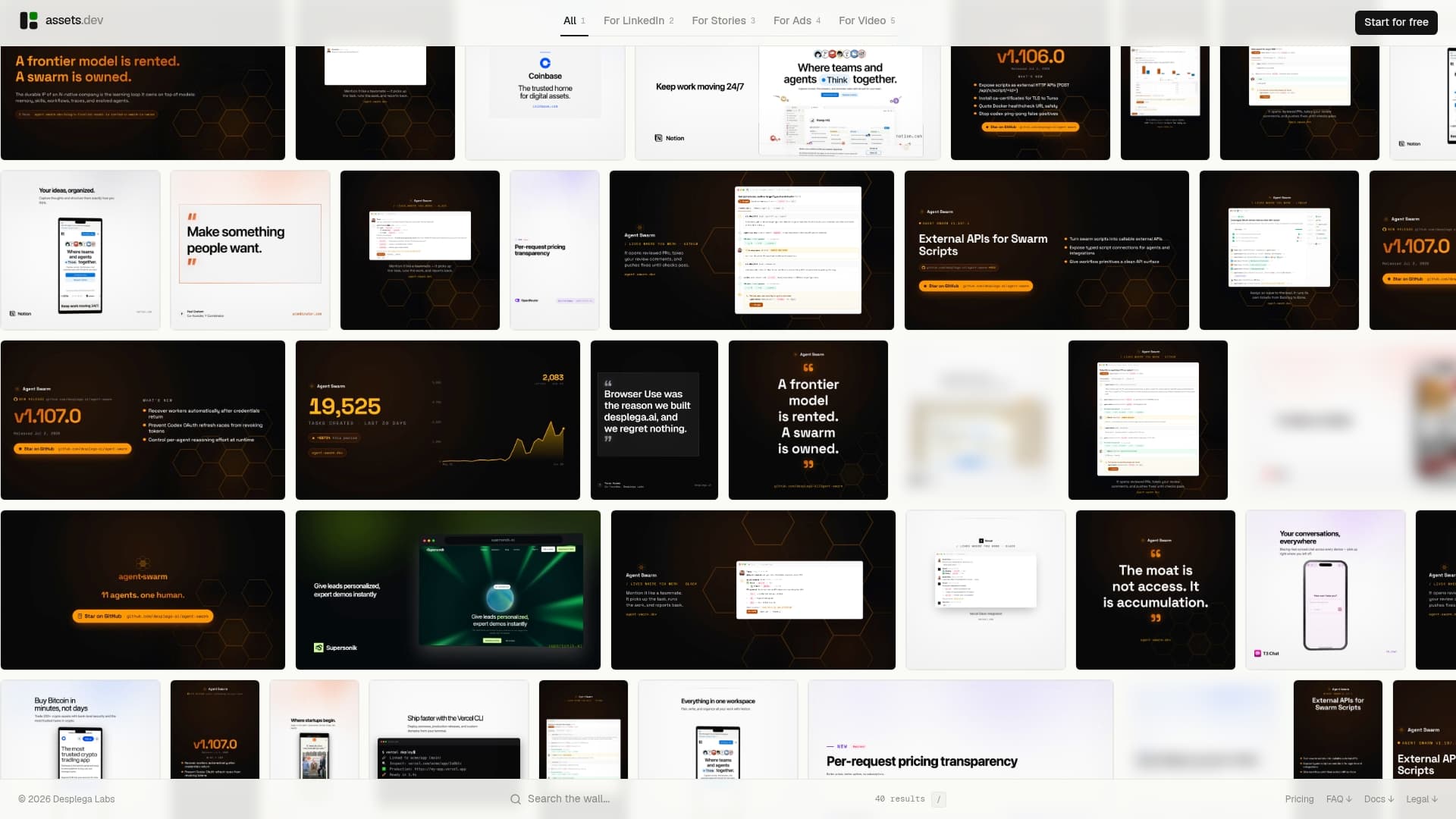
assets dev solves that at the asset level. You generate a branded image or short video from the RSS item's content using assets dev's template library, host it at a CDN URL, and attach it in your Zapier or GitHub Actions workflow before the post goes live. The result is a consistent visual identity across every automated post, not a patchwork of whatever the source site happened to use. The platform learns your brand in seconds, supports CLI and API integration so it fits directly into automated flows, and the free plan covers up to 100 image renderings with no credit card required. Through July, new accounts get 1,000 credits instead of the standard 100. The pro plan is $9/month if you need more volume. Start at Assets and connect your first template to your RSS workflow today.
Sources
FAQ
Does LinkedIn support RSS natively?
Yes, but only for LinkedIn Pages. Page super admins and content admins can import RSS feeds through Manage Content Sharing; personal profiles have no native RSS feature and require a third-party tool.
Where do I find my RSS feed URL?
WordPress sites serve feeds at /feed or /rss.xml, Ghost at /rss, and Substack at [publication].substack.com/feed. If your site has no native feed, services like RSS.app or FetchRSS can generate one from any public web page URL.
Do people still use RSS feeds for content distribution?
RSS remains the standard format for syndicating blog posts, podcasts, and newsletters across platforms. Most publishing tools (WordPress, Ghost, Substack) generate feeds automatically, and automation platforms like Zapier and IFTTT are built around RSS as a primary trigger source.
What is the best free tool for automating RSS posts to LinkedIn?
IFTTT's free applet handles personal profiles with minimal setup, and Zapier's free tier covers Pages with basic field mapping. Both have polling limits on free plans, so expect some delay between a new feed item and the LinkedIn post.
Can I attach images to automated RSS posts on LinkedIn?
Yes, if your feed includes an <enclosure> or <media:content> element, most automation tools will pick up the image. When the feed lacks one, you can generate a branded image using a tool like assets dev and host it at a public URL for your automation to attach.