Field note
The Best Open Graph Image Templates for Marketers
Discover the best open graph image templates for marketers. Easily create stunning visuals to boost engagement on social media and websites.

For most content creators, the fastest path is a curated Figma template pack for design work and a serverless generator for anything that needs to scale per page. Pick one, export a PNG at the recommended Open Graph size, and drop a single og:image meta tag into your page head. That's the whole loop.
- Non-technical creators: Download a ready-made template from a browser-based generator or the Figma Community OG pack, swap in your headline and logo, and export a PNG. No code required.
- Teams needing per-page dynamic OGs: Deploy a minimal endpoint using @vercel/og (ImageResponse/Satori) or Netlify Edge Functions with og_edge. Each page gets its own generated preview automatically.
Next step: Choose a template source below, export or deploy, then add <meta property="og:image" content="https://yourdomain.com/og.png" /> to your page.
Pro Tip: Test your first OG image in the Facebook Sharing Debugger before you publish anything. It catches absolute URL errors and stale caches before your audience sees them.
Key Takeaways
The most reliable approach combines ready-made open graph image templates for static pages with a Satori-based dynamic endpoint for high-volume or personalized content.
| Point | Details |
|---|---|
| Standard OG image size | Export at the recommended Open Graph size px; PNG for text-heavy cards, WebP for image-led ones. |
| Meta tag minimum | Include og:image (absolute URL), og:image:width, og:image:height, and twitter:card. |
| Dynamic generation | Use @vercel/og or og_edge; load fonts explicitly and set CDN cache headers. |
| Design rule | Keep all text within a 1120×550 px safe area; one headline at 48–64px minimum. |
| assets dev | Combines curated templates with CLI/API/MCP rendering for teams that need both design quality and scale. |
Table of Contents
- Where can you find high-quality open graph image templates?
- How do you customize templates and export the right formats?
- How do you add OG meta tags to your pages?
- Static templates or dynamic generation: which one fits your situation?
- How do you generate dynamic OG images with edge or serverless functions?
- Design rules that make OG images drive clicks
- How assets dev handles both template design and scale
- The case for starting with one template and iterating
- assets dev makes OG image production faster at any scale
- Sources
- FAQ
Where can you find high-quality open graph image templates?
Three source categories cover most workflows: Figma community files, browser-based generators, and downloadable template packs.
Figma community packs are the strongest starting point for brand-consistent work. The OG Image Templates Pack for SaaS, Software & B2B Tech on Figma Community includes 40+ layouts built around headline hierarchy and logo placement. Because the file stores components and shared styles, one color token update cascades across every variant without rebuilding layouts from scratch. That's the real advantage for brand teams.
Browser-based generators like AllTools' OG image generator and ToolV's OG Image Generator handle client-side rendering entirely in the browser, so your content never leaves your machine. Both export PNGs at the recommended Open Graph size (with WebP/JPEG options) and work well for one-off posts or small teams without a Figma license.
Downloadable template packs from design marketplaces give you editable source files you can batch-export. They suit teams that need a large library of social media image templates but don't want to maintain a live design system.
| Category | Best for | Ease of use | Integration options | Cost |
|---|---|---|---|---|
| Figma community packs | Brand-consistent, multi-variant OG sets | Designer-first | Figma plugins, export to PNG/SVG | Free community files |
| Browser-based generators | Quick one-off exports, no-code teams | Non-technical users | Web UI, download only | Free tiers available |
| Downloadable packs | Bulk static exports, offline workflows | Moderate | Manual export, batch rename | Varies; many free |
| Serverless/API generators | Dynamic per-page OGs at scale | Developer-first | CLI, API, serverless code | Free tiers; usage-based |
For teams that also need automated social media tools to feed these images into publishing pipelines, the serverless category is where the real leverage sits.
How do you customize templates and export the right formats?
Start with four branding edits before touching anything else: headline copy, logomark placement, primary color tokens, and font selection. Get those right and the rest of the template falls into place.
File format and size rules:
- The recommended Open Graph size px is the baseline for Facebook, LinkedIn, and X. Some platforms accept 1200×600, but 630 gives you the safest crop across all of them.
- PNG is the safe default for typography-heavy cards. It preserves sharp text and flat graphics without compression artifacts.
- WebP cuts file size for image-led cards, but some crawlers have historically preferred JPEG or PNG, so test against your target platforms before committing.
- JPEG works for photo-background cards where a small amount of compression is acceptable.
For bulk exports, name files predictably: og-[slug].png maps cleanly to your page URLs and makes og:image paths easy to construct. Keep a master Figma file with all variants so a single brand update propagates everywhere.
Pro Tip: Satori-based renderers (used in @vercel/og and og_edge) only support TTF, OTF, and WOFF font formats. If you're moving from a Figma design to a dynamic endpoint, confirm your brand font is available in one of those formats before you build the template.
Safe margins matter more than most designers expect. Keep all critical text and logos at least 40px from every edge. Social platforms crop previews differently, and a headline that bleeds to the edge on desktop often gets clipped on mobile cards.
The og-images-generator npm package documents that Satori supports gradients, flexbox, and inline SVG, but not CSS Grid. Design your templates in flexbox-compatible layouts from the start if you plan to move them into a dynamic pipeline later.
How do you add OG meta tags to your pages?
The minimum viable tag set is three lines. Everything else is optional but recommended.
Core tags:
og:imagewith an absolute URL (relative paths are one of the most common reasons previews break)og:image:widthset to1200og:image:heightset to630twitter:cardset tosummary_large_imagefor X/Twitter coveragetwitter:imagepointing to the same absolute URL
A static implementation looks like this:
<meta property="og:image" content="https://yourdomain.com/og/homepage.png" />
<meta property="og:image:width" content="1200" />
<meta property="og:image:height" content="630" />
<meta name="twitter:card" content="summary_large_image" />
<meta name="twitter:image" content="https://yourdomain.com/og/homepage.png" />
For a dynamic endpoint, swap the static path for your serverless route:
<meta property="og:image" content="https://yourdomain.com/api/og?title=Your+Page+Title" />FreeCodeCamp's Open Graph guide flags two pitfalls that catch almost everyone: relative URLs silently fail (crawlers need the full https:// path), and platforms aggressively cache previews. After updating an image, force a re-scrape using the Facebook Sharing Debugger, LinkedIn Post Inspector, or X Card Validator.
| Tag | Value | Required? |
|---|---|---|
og:image | Absolute URL to your image | Yes |
og:image:width | 1200 | Strongly recommended |
og:image:height | 630 | Strongly recommended |
twitter:card | summary_large_image | For X/Twitter |
twitter:image | Same absolute URL | For X/Twitter |
Static templates or dynamic generation: which one fits your situation?
The answer depends on content volume and how much each page's preview needs to differ from the others.
- Solo creator or small blog (under 50 posts): Static exports from a Figma template or browser generator are faster to ship and easier to maintain. Batch-export once, name files by slug, and you're done.
- Marketing team with a fixed set of content types: A hybrid approach works well. Use static templates for evergreen pages (homepage, pricing, about) and a lightweight dynamic endpoint for blog posts or landing pages that change frequently.
- Documentation site, product catalog, or SaaS with hundreds of pages: Dynamic generation is the only practical path. Maintaining hundreds of hand-exported PNGs is not sustainable.
Decision factors at a glance:
- High content volume or frequent updates → dynamic generation
- Fixed page set, infrequent changes → static exports
- No engineering bandwidth → browser-based generator or template platform
- Need per-page personalization (title, author, category) → serverless endpoint
- Cost-sensitive with low traffic → static files on a CDN, zero compute cost
For teams exploring visual content creation tools that sit between these two extremes, a template platform with an API covers both cases without requiring a custom build.
How do you generate dynamic OG images with edge or serverless functions?
Use a Satori-based generator: either @vercel/og (which wraps Satori in an ImageResponse API) or og_edge on Netlify Edge Functions. Both convert HTML/CSS to PNG without a headless browser, which keeps cold-start times low and bundle sizes small.
Minimal implementation checklist:
- Install
@vercel/ogorog_edgein your project. - Create a route handler (e.g.,
/api/og) that accepts query parameters liketitleandslug. - Return an
ImageResponsewith your JSX template at the recommended Open Graph size. - Load fonts explicitly — pass TTF/OTF/WOFF buffers into the
fontsoption. Do not rely on system fonts; they are not available in edge runtimes. - Set
Cache-Control: public, max-age=86400, s-maxage=86400on the response so your CDN caches generated images and you're not paying compute for every crawler hit. - Add an
Allow: /api/ogrule inrobots.txtso crawlers can reach the endpoint.
Pro Tip: Drive dynamic content from a cached sitemap JSON rather than a live database query. Netlify's example projects show this pattern: fetch the sitemap once, cache it at the edge, and serve image content from that cache. It eliminates database round-trips on every OG request.
Common gotchas:
- Satori supports flexbox but not CSS Grid. Layouts that use
display: gridwill silently fall back or break. - Bundle size limits on edge runtimes are tight. Avoid importing large libraries inside your OG route.
- Inline SVGs render correctly; external SVG URLs often do not. Embed SVG markup directly or convert to PNG first.
- The og-images-generator package notes that trial-and-error is common with HTML/CSS-to-SVG-to-PNG pipelines. Clean, semantic flexbox layouts reduce rendering surprises significantly.
For GitHub example projects, search for repositories using @vercel/og with Next.js App Router or og_edge with Netlify Functions. Both ecosystems have maintained starter repos that demonstrate font loading, background images, and dynamic slug routing.
Design rules that make OG images drive clicks
A good OG image does one thing: make someone stop scrolling. That means high contrast, a single readable headline, and nothing competing for attention.
Core design checklist:
- Contrast first. Text must pass WCAG AA contrast ratios against its background. Dark text on light backgrounds or white text on dark backgrounds with no gradient interference.
- One headline, large. Aim for 48–64px at the recommended Open Graph size. If the title wraps to three lines, it's too long for a card.
- Logo in a corner. Bottom-left or top-right. Small enough not to compete with the headline, large enough to be legible at thumbnail size.
- Minimal supporting copy. A category label or author name is fine. A paragraph is not.
- Single focal point. One illustration, one product screenshot, or a clean color field. Multiple competing visuals reduce click-through.
Safe text area: keep all copy within a 1120×550 px inner box (40px margin on all sides). Cards get cropped differently across Facebook, LinkedIn, and X, and anything outside that box is at risk.
That's roughly how it appears in a desktop feed. If the headline is illegible at that size, increase the font weight or size before shipping.*
For accessibility, always populate the alt attribute on any <img> tag that references your OG image within your page content. For the meta tag itself, the og:image:alt property lets you describe the image for screen readers and assistive crawlers. Keep it under 100 characters and describe the actual visual content, not just the page title.
Color blindness affects a meaningful share of your audience. Avoid red/green combinations as the sole differentiator between elements, and run your palette through a contrast checker like WebAIM's tool before finalizing templates.
How assets dev handles both template design and scale
assets dev is a curated platform built specifically for marketing growth assets, which means every template in the library is production-ready rather than a generic starting point. The system reads your brand in seconds and applies your colors, fonts, and logo across the full template set automatically.
What the platform covers:
- Curated OG image templates alongside LinkedIn, Instagram, Google, X, and Substack formats
- CLI, API, and MCP integration so you can call the renderer from a serverless function, a CI pipeline, or a growth automation workflow
- A free plan with up to 100 image renderings, no credit card required (1,000 credits in July 2026)
- A single pro plan at €9/month for teams that need higher volume
Pro Tip: Use the assets dev API as a drop-in replacement for a custom @vercel/og endpoint. Pass your page title and slug as parameters, get back a branded PNG at the right dimensions, and reference it in your og:image tag. You skip the font-loading and CSS-subset headaches entirely.
The platform suits teams that want design flexibility without maintaining a custom rendering pipeline. You get the template quality of a Figma pack and the automation of a serverless generator in one place.
The case for starting with one template and iterating
The teams that ship the best OG images are not the ones with the most sophisticated pipeline. They're the ones that picked a single template, validated that it lifted click-through on shared links, and then automated from there.
Start with a Figma community pack or a browser generator. Get one template live, test it in the Facebook Sharing Debugger and LinkedIn Post Inspector, and watch whether your link previews start performing differently in shares and newsletters. Once you see the signal, that's when a dynamic endpoint or a platform like assets dev pays for itself. Automating a template that doesn't work just produces bad images faster.
The hybrid approach described throughout this article reflects how most mature content teams actually operate: static exports for stable pages, dynamic generation for content that changes at volume. Neither approach is universally better. The right one is whichever you can ship and iterate on this week.
assets dev makes OG image production faster at any scale
Most teams hit the same wall: the Figma template looks great, but keeping it consistent across 50 blog posts, three LinkedIn formats, and a newsletter header takes more time than the content itself. assets dev is built for exactly that gap.
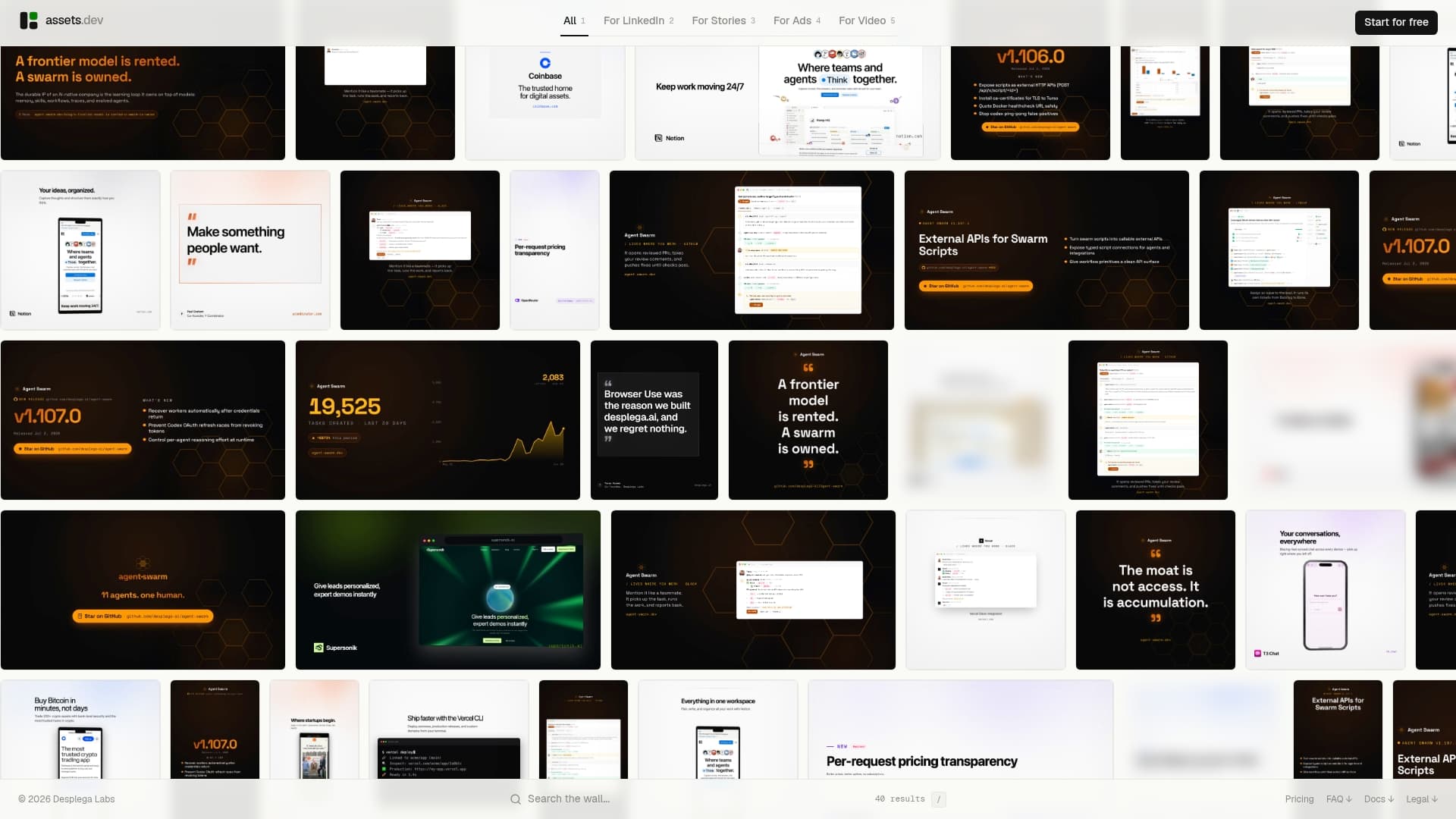
The platform learns your brand in seconds and applies it across every template format automatically. You get curated, production-ready OG templates alongside LinkedIn, Instagram, X, and Substack formats, all accessible via web, CLI, API, or MCP integration for teams that want to plug rendering directly into their growth workflows. The free plan covers 100 image renderings with no credit card required, and the only paid tier is €9/month. Through July 2026, new accounts start with 1,000 free credits instead of 100.
If you're ready to stop rebuilding the same template by hand, Assets and have your first branded OG image exported in under five minutes.
Sources
- Open Graph (OG) Image Generation — Vercel
- Generate dynamic Open Graph images using Netlify Edge Functions — Netlify Developers
- What is Open Graph and how can I use it for my website? — freeCodeCamp
FAQ
What is the correct size for an Open Graph image?
The standard size is the recommended Open Graph size px. Most major platforms including Facebook, LinkedIn, and X render previews at this ratio, and it's the size recommended by Vercel's @vercel/og documentation.
Do I need a developer to create dynamic OG images?
Not necessarily. Browser-based generators like AllTools handle exports without any code. For per-page dynamic generation, @vercel/og and og_edge require basic JavaScript knowledge but have well-documented starter examples.
Why is my OG image not updating after I changed it?
Social platforms cache OG images aggressively. Use the Facebook Sharing Debugger, LinkedIn Post Inspector, or X Card Validator to force a re-scrape after any image update, as FreeCodeCamp's OG guide explains.
Can assets dev generate OG images via API?
Yes. assets dev provides CLI, API, and MCP integration, so you can call the renderer from a serverless function or automation workflow and receive a branded PNG at the correct dimensions without managing a custom Satori pipeline.
What CSS does Satori support for dynamic OG generation?
Satori supports flexbox layouts, gradients, and inline SVG, but not CSS Grid. The og-images-generator npm package documents these limitations and recommends clean, semantic flexbox structures to avoid rendering inconsistencies.