Field note
Turn Any Photo Into a Video With Image-to-Video AI
Transform a still photo into a stunning video in seconds using image-to-video AI. Experience fast, engaging video creation for social media!
Image-to-video AI takes a single still photo and generates a short, animated video from it, complete with camera movement, subject motion, and social-ready framing. The fastest way to see what it can do is to run one image through a generator today and watch it come back as a six-second clip you could post in the next hour.
That speed is the whole point. A marketer used to waiting on a video shoot can now go from product photo to finished Reel before lunch. Here's what to expect from the process:
- Faster turnaround than filming, editing, or hiring a motion designer for a single clip
- Consistent branding across every clip when the tool pulls from your existing image assets
- Native export presets for 9:16, 1:1, and 16:9, so you're not reformatting for every platform by hand
Key Takeaways
Image-to-video AI works because it infers realistic motion from a still image using depth and multimodal context rather than manually keyframed animation.
| Point | Details |
|---|---|
| Start with one test render | Pick a clean, well-lit image and export a 6 to 15 second clip before committing to a full campaign. |
| Match aspect ratio to platform | Use 9:16 for Reels and TikTok, 1:1 for feed posts, and 16:9 for YouTube or landing pages. |
| Watch for common artifacts | Facial distortion, warped text, and background tearing show up most on close-ups and busy scenes. |
| Choose physics-aware motion for realism | Save stylized, exaggerated presets for brand content where surrealism is intentional. |
| Use assets dev for repeatable branded output | Its templates, API/CLI access, and free plan (10 videos or 100 image renders, 1,000 credits in July) suit teams scaling branded clips. |
Table of Contents
- What Can Image-to-Video AI Actually Do?
- How Do You Convert an Image Into a Video?
- Where Does This Fit Into a Marketing Campaign?
- What Quality Should You Expect, and What Goes Wrong?
- How Does the AI Actually Generate Motion?
- How Should You Choose an Image-to-Video Tool?
- Get Your First Branded Clip Out Today
- Sources
- FAQ
What Can Image-to-Video AI Actually Do?
The core trick is motion generation: the model looks at a flat image and predicts what plausible movement would look like across a few seconds of frames. Better tools give you first and last frame control, meaning you set where the clip starts and where it should end up, and the AI fills in the motion between them. That matters for product shots where you want a bottle to rotate into a fixed final position rather than drift off-screen.
Beyond raw motion, the feature set that actually affects how a video looks in a feed includes:
- Camera-style movement — subtle pans, zooms, or parallax that mimic a handheld shot rather than a static slide
- Motion style presets — options ranging from a gentle ambient sway to a stylized, exaggerated animation
- Loopable output — clips that reset seamlessly, useful for autoplay ads and Stories
- Prompt-based direction — a short text prompt ("slow zoom in, steam rising from the cup") to steer the model instead of relying on a generic default
- Batch processing and templates — render the same motion style across dozens of product photos in one pass
- API and CLI access — for teams that want image-to-video baked into an automated content pipeline rather than a manual upload-and-download loop
Pixlr's video generator, for example, lets you choose between Fast, Pro, and Ultra models with different aspect-ratio presets, and often returns an HD clip in under a minute.
Pro Tip: Framing and lighting consistency do more for perceived production value than flashy motion effects. A steady, well-lit product shot with subtle camera drift often reads as more "professional" than an aggressive zoom on a mediocre photo.
How Do You Convert an Image Into a Video?
You don't need a production background to get a usable clip. The process is short enough to run between meetings:
- Pick a clean source image with good lighting and a clear subject, ideally shot or exported at a resolution above 1080p.
- Choose your aspect ratio first — 9:16 for Reels and TikTok, 1:1 for feed posts, 16:9 for YouTube or landing-page hero clips.
- Select a motion style or write a short motion prompt describing the camera move or subject behavior you want.
- Set duration and first/last-frame behavior — most social clips work best at 6 to 15 seconds; paid ads often run 15 to 30 seconds.
- Preview before rendering to catch obvious distortions early.
- Export as MP4 with H.264 for fast upload compatibility, or H.265 if file size matters more than universal playback support.
Before you hit export, check three things: sharpness on the main subject, whether the subject stays isolated from a warping background, and whether any small text in the image (a logo, a price tag) is holding its shape.
Pro Tip: If a clip looks slightly "off," try dialing back to a small parallax camera movement instead of a big subject animation. Gentle motion tends to look more realistic than dramatic object deformation, which is where most artifacts show up.
Where Does This Fit Into a Marketing Campaign?
Image-to-video output slots into more of the funnel than most creators expect on their first try.
- Social shorts: a single hero product photo with subtle animated motion works well as a 6 to 15 second Reel or TikTok, often outperforming a static image post on watch time.
- Paid ads and product showcases: loop a 15 to 30 second version with a call-to-action overlay for feed and Stories placements.
- Email and landing pages: a muted, autoplay 5 to 10 second MP4 as a hero clip loads faster than embedded video and adds motion without a play button.
- Testimonials and brand storytelling: animating an old event photo or customer shot gives nostalgia content a documentary feel that a static image can't match.
Vimeo's editor documents this kind of workflow directly, with transitions, music, and social export presets built around exactly these formats. For quick, on-the-go tests, mobile-first animation apps also let you render a clip straight from your phone before committing to a desktop workflow.
What Quality Should You Expect, and What Goes Wrong?
Most generators export to MP4 containers using H.264 or H.265 codecs, with resolution options running as high as 4K, though social platforms compress heavily anyway, so 1080p is usually enough. ElevenLabs, for one, documents exports up to 4K with H.264/H.265 alongside AI voice and lip-sync add-ons for talking-photo formats.
Render times vary by model and resolution. A short clip often finishes in seconds to a few minutes; a batch of dozens of product images will take proportionally longer, especially at higher resolutions.
Watch for these common failure modes:
- Facial distortion — eyes or mouths warping slightly during motion, especially on close-up portraits
- Warped typography — small text or logos in the source image losing shape as the model animates around them
- Floating limbs or background tearing — a side effect of the model guessing depth incorrectly on complex scenes
Free plans commonly cap resolution, render count, or clip length, so budget your tests accordingly. If you spot an artifact, the fastest fix is usually cropping tighter around the subject, retouching the problem area before upload, or switching to a face-stabilization setting if the tool offers one.
How Does the AI Actually Generate Motion?
The short version: the model doesn't "animate" a photo the way a cartoonist would. It infers depth, geometry, and likely motion patterns from the still image, then extrapolates a sequence of frames that stays visually consistent with the original.
Multimodal models push this further by combining text, image, and video context in a single system. Gemini Omni, for instance, can generate video from text, up to five photo references, or video inputs, and supports conversational, step-by-step editing rather than a one-shot render. That combined context tends to produce motion that respects physics, an arm swings the way an arm should, rather than treating every pixel as independently movable. The broader industry is moving toward this kind of world-understanding approach, predicting plausible motion instead of stitching frames mechanically.
Pro Tip: Reach for a physics-aware or multimodal setting when the goal is a believable product shot. Save stylized, exaggerated motion presets for brand content where a cartoonish or surreal effect is the point.
How Should You Choose an Image-to-Video Tool?
Run through this checklist before committing budget to any one platform:
- Export quality and aspect ratios — does it cover 9:16, 1:1, and 16:9 natively, or will you crop manually?
- Brand asset support — can it pull your logo, colors, and fonts automatically, or does every clip start from scratch?
- Automation options — is there an API or CLI for teams generating dozens of clips a month?
- Cost model — priced per render credit, per clip, or flat monthly? Check what a free tier actually caps.
- Usage rights and privacy — who owns the output, and where does your uploaded image get stored?
- Onboarding speed — can you get a usable clip out in your first session, or does it require a learning curve?
Prioritize speed when you're testing concepts, and fidelity once you've found a motion style worth scaling. Before locking in a subscription, run one branded sample image through a 15-second target export and judge the real result, not the marketing screenshots.
A marketer's take on where this fits
I've watched teams over-invest in polish for content that only needed to move. The honest trade-off: animated stills win on speed, filmed clips win on nuance. Run both as A/B tests against the same audience before assuming one wins outright. And whatever tool you pick, reuse the same template and motion style across a campaign. Consistency reads as intentional, not repetitive.
Get Your First Branded Clip Out Today
Most of the tools covered above are built for animating a single photo. assets dev is built for teams that need to do this repeatedly, on-brand, without re-uploading logo files and re-picking fonts every time. It learns your branding in seconds, then applies it automatically across every image, video, and PDF asset you generate, including 9:16, 1:1, and 16:9 exports sized for LinkedIn, Instagram, Google, X, and Substack.
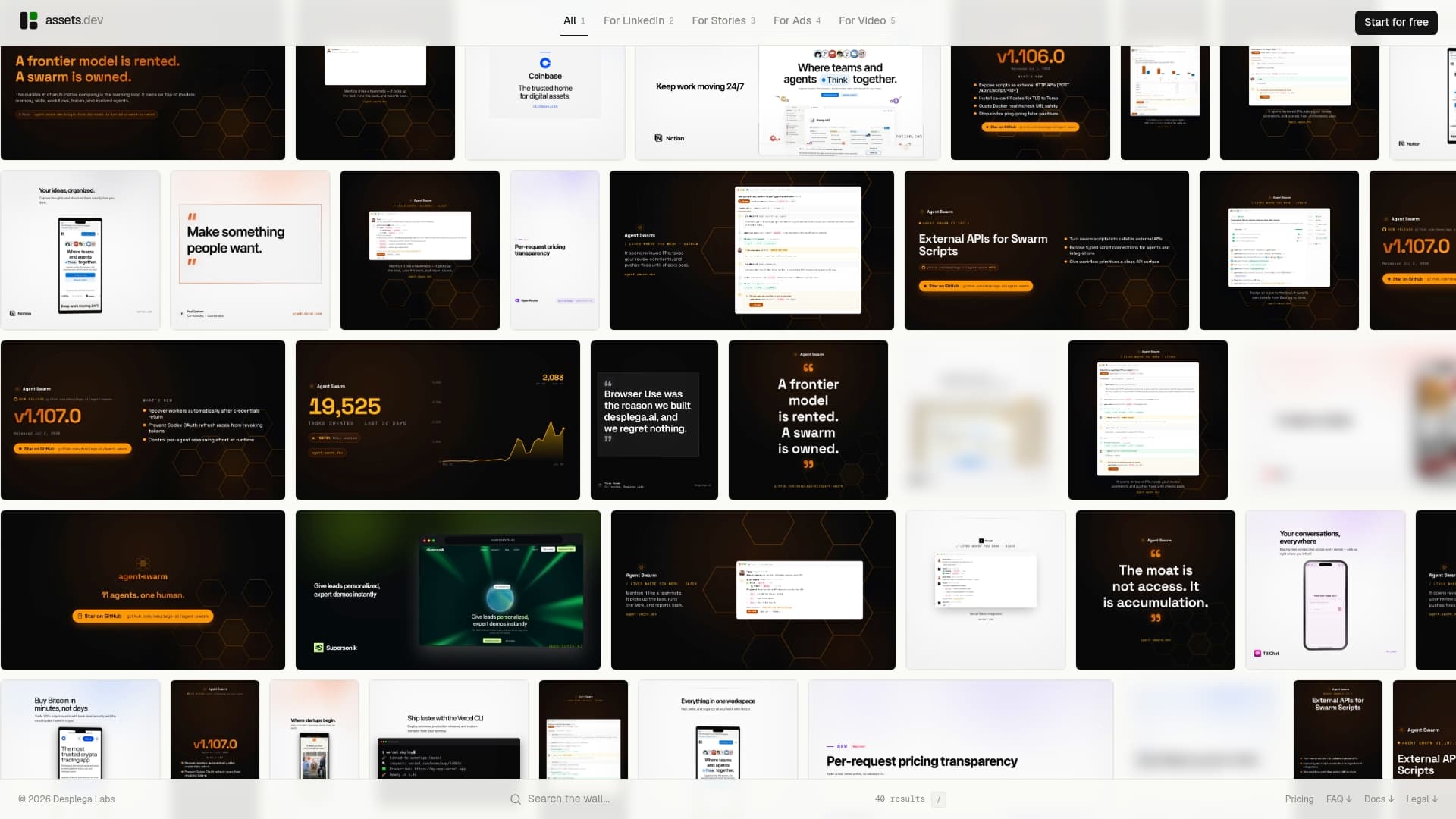
Start with the smallest possible test: upload one hero product image, render a branded 9:16 clip, and export it for Instagram Reels. If you want to automate this across dozens of assets later, the CLI and API integration plugs directly into existing growth workflows instead of sitting as a manual side task.
The free plan covers a limited number of video and image renders with no credit card required, and creators who sign up in July receive extra credits beyond the usual allocation. Beyond that, the only paid tier is $9 a month. Try assets dev and see what your first branded clip looks like before deciding whether to upgrade.
Sources
- Gemini Omni – Create & edit videos as easy as having a conversation
- Free AI Video Generator — Text to Video & Image to Video | Pixlr
- Image to Video AI: Transform Photos into Videos
- Free Image to Video Maker: Convert Photos & Pictures into Video Online
FAQ
What Is Image-to-Video AI?
It's a category of AI models that convert a static image into a short animated video by predicting realistic motion, camera movement, or subject animation from the still.
How Long Does It Take to Render a Clip?
Short clips typically render in seconds to a few minutes depending on resolution and model, while batch jobs across many images take longer.
What File Format Should I Export For Social Media?
Most generators export to MP4 containers using H.264 or H.265 codecs, with resolution options up to 4K, so choose the codec based on file size and compatibility needs.
Can I Use My Own Branding in the Output?
Tools like assets dev inject your logo, colors, and fonts automatically once it learns your branding, so you don't reformat every clip manually.
What Causes Distorted Faces or Warped Text in AI Video?
The model is guessing depth and motion from a flat image, and complex areas like faces or small text are the most common places that guess breaks down.
Is There a Free Way to Test Image-to-Video AI Before Paying?
Yes. assets dev offers a free plan covering up to 10 video renders or 100 image renderings with no credit card required, plus 1,000 credits for new signups in July.